Features |
Home > JiShop Mobile > Features |
| Features | Home > JiShop Mobile > Features |
JiShop Mobile employs, primarily, the following seven windows:
- the Kanji Search window
- the Results window
- the Compounds window
- the Radical Info window
- the Groups window
- the Drill window
- the Settings window
The Kanji Search window, AKA the main window, is used for searching in the kanji database.
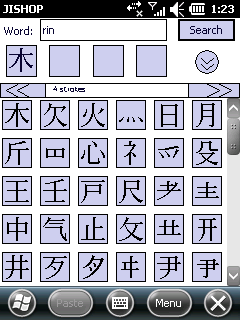
The search parameters are specified in the top part of the window:
- In the Word box, you can provide the reading (onyomi or kunyomi) of the kanji you're looking for, either in rōmaji or in kana. If you know the Japanese spelling of the word, you can provide it there as-is.
- The four cells in the second row contain the selected radicals.
- The Search button runs the search by the specified parameters (reading, radicals, etc.).
JiShop also supports advanced search parameters. To see those, you have to click the double-arrow button:
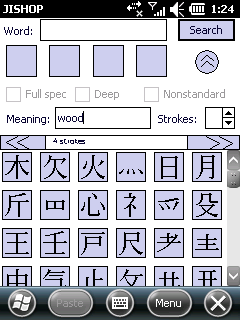
- Checking the "Full spec" box makes the search only look for characters that consist precisely of the selected radicals. Without this check, radical search finds all kanji that contain the selected radicals and maybe other radicals as well.
- Checking the "Deep" box turns on searching by deep decomposition of kanji into radicals. It's useful when you're looking by primitive strokes.
- Checking the "Nonstandard" box makes JiShop consider non-standard decompositions. Some popular misconceptions and radical misidentifications are covered by this option.
- The "Meaning" box lets you search by the English translation of the kanji/word.
- The "Strokes" box lets you search by specifying the stroke count of the kanji.
When you click "Search", JiShop first goes through its kanji list. The matching kanji are displayed in the Results window. If not a single kanji was found, and either meaning or reading was specified, the system searches the compound words dictionary by the same reading/meaning, and displays the results in the Compounds window
The lower part of the main window is occupied by the radical table. From v. 3.40, it's organized by pages; except for the collapsed mode, only one page is diplayed at a time. A page contains all radicals with a given stroke count. To navigate between pages, tap the double-arrow buttons in the table's top corners. When you collapse the radical table (see below), its structure changes - the radicals are arranged in colmuns by stroke counts. Clicking on a radical in the table selects it and places it into a free cell; clicking an occupied cell clears it.
If you tap and hold a radical in the table, the context menu of the radical will pop up. The top, inactive line in the menu is the radical's canonical name. The Select command is equivalent to clicking on a radical. The "Collapse" command hides all radicals in the table, except for those related with the chosen one (in JiShop/Windows you can get the same result by right-clicking a radical twice). The Info command brings up the Radical Info window.
To restore the full table, click the  button in the toolbar, or select Radicals/Restore table in the menu.
The reading can be specified either in rōmaji , or in hiragana, or in katakana. You can specify long vowels either with a colon, or as "ou/uu".
You can also provide the Japanese word directly in the "Word" box.
The command bar contains the following commands:
- Menu - open up the menu with the following items:
- Radicals
- Restore table - displays all available radicals in the table
- Edit
- Copy - copies the selected text from the active input box (if any) to the system clipboard
- Paste - pastes the clipboard text into the Word or Meaning box
- Window
- Results - activates the Results window. This command is disabled until the first successful kanji search.
- Compounds - activated the Compounds window
- Groups - activates the Groups window
- Drill - activates the Drill window
- Settings... - activates the Settings window (see below)
- About JiShop... - information about the system (copyright, vendor info, support e-mail, etc.)
- License... - used to pick up a permanent license, if you purchase one
- Radicals
 Same as Menu/Window/Results
 Same as Menu/Window/Compounds
 Same as Menu/Window/Groups
 Same as Menu/Window/Drill
- Same as Menu/Radicals/Restore table
 Same as Menu/Edit/Copy
 Same as Menu/Edit/Paste
The Results window contains the list of the found kanji and the dictionary entry for one of those. You can activate the entry screen by tapping on the kanji image in the results list.
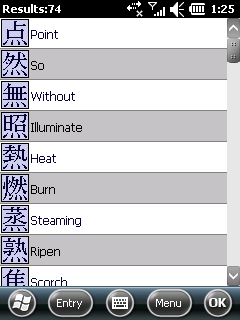
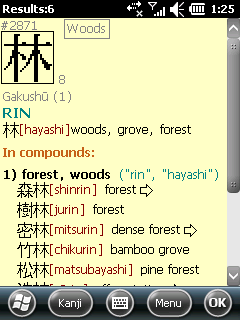
Since v. 3.40, the list and the entry screens are separate. To navigate from the list to the entry, you tap
the kanji button in the left part of the list, or tap the "Entry" button in the toolbar
( ). To navigate back to the list, tap the system-provided OK button in the
right screen corner. Tapping the same "OK" on the list screen returns you to the main window.
). To navigate back to the list, tap the system-provided OK button in the
right screen corner. Tapping the same "OK" on the list screen returns you to the main window.
The layout of the dictionary entry is identical to that of the JiShop/Windows; you can find the description here. All kanji in the entry are hyperlinks - if you click a kanji with your stilus, the kanji's own dictionary entry will be displayed. Clicking the large kanji image will activate the Compounds window and place the kanji into a search cell.
JiShop Mobile supports retrieval and display of online
Stroke Order Diagrams (SODs), like the Strokes plugin does for JiShop/Windows.
To see the SODs, you can use the Menu/Kanji/Stroke order command, or click the
 button. The SODs are taken from the Internet,
so for this command you must have an active connection.
button. The SODs are taken from the Internet,
so for this command you must have an active connection.
The command bar contains the following commands:
- Menu
- Kanji
- Radicals - activates the main window and hides all radicals in the table except for those that make up the current kanji. This is equivalent to clicking the "HL" button twice in JiShop/Windows.
- Info - brings up the kanji info window. It contains the codes of the kanji in different codepages and dictionaries, and the canonical radical(s) (bushu) of the kanji.
- Stroke order - brings up the SOD of the kanji, if one exists.
- Add to group - adds the current kanji to the active group
- Add all to group - adds all kanji from the strip to the active group
- Back - displays the previous kanji (like Back in a Web browser)
- Forward - displays the next kanji (like Forward in a Web browser)
- Search
- Compounds with this kanji - activates the Compounds window, switches it into search by kanji mode, and places the current kanji into a free slot. You can get the same result by clicking the large kanji image in the entry.
- Edit
- Copy - copies the current kanji to the clipboard as a sinlge-character text
- Paste - populates the strip with all kanji that can be found in the clipboard text
- Windows
- Main - activates the main window
- Compounds - activated the Compounds window
- Groups - activates the Groups window
- Drill - activates the Drill window
- Kanji
 Same as Menu/Kanji/Back
 Same as Menu/Kanji/Forward
 Same as Menu/Kanji/Radicals
 Same as Menu/Kanji/Info
- Same as Menu/Kanji/Stroke order
 Same as Menu/Kanji/Add to group
 Same as Menu/Kanji/Add all to group
The Compounds window is used for searching in the compound words dictionary.
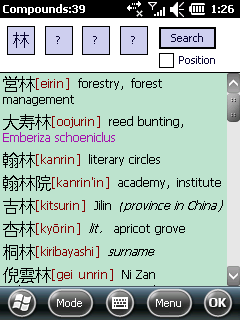
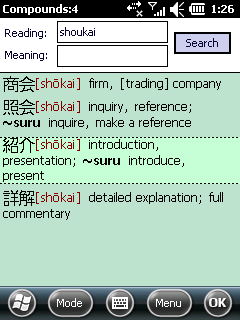
Two modes of search are supported: search by kanji and search by reading/meaning.
In the search by kanji mode, you can select up to four kanji to search for. The "Position" checkbox determines whether the kanji's position in the compound word will be taken into account during search. To place a kanji into a search cell, you have to locate it in the Results window, and click the large kanji image. You can move the selected characters left and right by means of dragging them.
A free kanji cell can have one of the two values - "?" or "-". You can cycle between those by clicking on the cell. The question mark means that on this position, any character would fit. The dash means that this position must be blank in the compound word. In other words, if you search for AB--, the system will find all words with precisely two characters - A and B (in this order), maybe with some hiragana in the middle. If you search for AB??, then the words of 3 or more kanji will be found as well, as long as the first kanji are AB. Again, this distinction only matters in the position-aware mode.
You can specify the reading in rōmaji, hiragana, or katakana, just like in the main window.
The Search button starts the search. The words, once found, are displayed below. The output format is identical to that of JiShop/Windows. All kanji in the compound words are hyperlinks - you can bring up the kanji's dictionary entry by clicking on it.
You can select compound words by clicking on them. Once you select a word, the several flavors of the Copy command are enabled.
Clicking "OK" in the top right corner activates the main window.
- Menu
- Search
- By kanji - switches into the search by kanji mode
- By reading/meaning - switches into the search by reading/meaning mode
- Edit
- Copy word - copies the Japanese word to the clipboard
- Copy reading - copies the transcription(s) of the word to the clipboard
- Copy meaning - copies the translation of the word to the clipboard
- Paste - pastes the clipboard text into the active text box, if any
- Window
- Main - activates the main window
- Results - activates the Results window. This command is disabled until the first successful kanji search.
- Groups - activates the Groups window
- Drill - activates the Drill window
- Search
- Same as Menu/Window/Results
- Same as Menu/Window/Groups
- Same as Menu/Window/Drill
 Same as Menu/Search/By kanji
 Same as Menu/Search/By reading/meaning
The Radical Info Window can be opened by clicking the "Info" command in the radical's context menu.
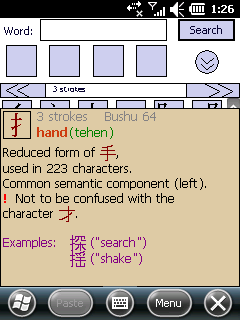
This window contains the number of strokes in the radical, it's traditional designation in English and in Japanese (if any), usage statistics, variants and alternative forms. For radicals that belong to the traditional list of 214 ("bushu"), the number in the list is given. Also, sample kanji with the radical are shown, typically two.
The images of other radicals are hyperlinks - clicking on one opens the info window for that radical. For radicals that are used as standalong kanji, clicking on the large radical image opens the kanji dictionary entry. The arrow buttons in the top right corner allow navigation within the radical table.
To close the window, click anywhere outside.
The Groups window
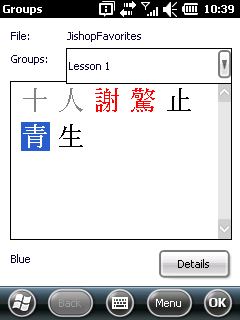
Like the Windows version, JiShop Mobile lets you compose and store arbitrary lists of kanji, so that you can come back to those at any time. These lists are stored in files; each file may have one or more named groups. Each group can have any number of characters; each character can be marked as "easy" or "hard". You can change the contents of the group, and the order of characters, anytime.
At any moment, JiShop Mobile has one active file and one active group. To create, load, or save group files, use commands from the File menu.
In the top part of the Groups window you can see the list of groups in the current file. Under ths list, you can see the kanji in the group. The characters that you designate as hard are rendered in red, the easy ones - in grey. You can select kanji by clicking and move them around by dragging-and-dropping. Clicking the "Details" button displays the kanji's dictionary entry in the Results window.
You can fill the group either from within JiShop (from the Results window), or from the clipboard. Also, you can move characters between groups and files by means of the clipboard.
From v. 3.40, JiShop autosaves all changes to the groups once every 3 minutes, or on app shutdown. The files are stored in My Documents with the .ksg extension.
You can synchronize the group files between JiShop/Windows and JiShop Mobile via ActiveSync. See below.
- Menu
- File
- New - creates a new, blank group file. If the current was changed and never saved, the system will prompt.
- Open - loads an existing groups file. If the current was changed and never saved, the system will prompt.
- Save - saves the current groups file. If the file name was never provided, the system will prompt.
- Save as... - saves the current groups file under a different name.
- Edit
- Copy - copies the selected character to the clipboard
- Copy all - copies all characters in the current group to the clipboard, as a string of text
- Paste - scans the clipboard text for kanji, pastes them all into the current group
- Groups
- New - creates a new, blank group in the current file. The system will prompt for the name.
- Delete - removes the current group.
- Clear - removes al characters from the current group, but leaves the group.
- Rename - changes the current group's name.
- Kanji
- Mark as hard - marks the selected character as hard
- Mark as eady - marks the selected character as easy
- Remove mark - marks the selected character as neither hard nor easy
- Delete from group - deletes the selected character from the group
- Window
- Main - activates the main window
- Results - activates the Results window. This command is disabled until the first successful kanji search.
- Compounds - activated the Compounds window
- Drill - activates the Drill window
- File
 Same as Menu/Kanji/Mark as hard
 Same as Menu/Kanji/Mark as easy
 Same as Menu/Kanji/Remove mark
 Same as Menu/Kanji/Delete from group
- Same as Menu/Window/Results
The Drill window can be used to test your knowledge of the Japanese alphabets and of kanji.
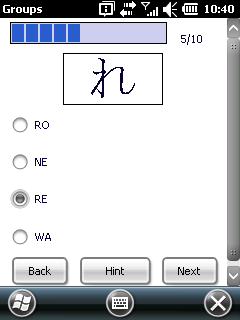
First thing you see when you invoke the drill is the drill type choice - hiragana, katakana, or kanji. If you choose kanji, you have an additional choice of a study group. The said groups are managed on their own window, see above.
The drill is your typical multiple choice test. At the end you will get a score. The Finish button only becomes available when you provide an answer to every single question. The Hint button lets you cheat; use at your own risk. The final mark does not take cheating into account.
The Settings window
The Settings window consists of four tabbed panels: View, Font, Scope and SOD.
The View tab contains the following settings:
- Transliteration/Words - the mode of transliteration that you choose here will be applied to kun's, compound words, and formants.
- Transliteration/Onyomi - this will be applied to on's in the kanji dictionary entries.
- Use choon for long vowels in onyomi - this setting applies to katakana transcription of on's. By default, the long vowels O and U are rendered as if it's hiragana - by appending the letter U. With this setting checked, the chōon (long dash) will be used, like they do when rendering katakana loanwords.
- Instant scrolling - with this box checked turned on, JiShop will allow scrolling by dragging in the scroll bars. This may be too slow to be usable on some old devices.
- Update check - by default, JiShop checks for new versions once every 2 weeks. To turn that check off, use this setting.
The Font tab is used for choosing a Japanese font, if the device has them.
The Scope tab can be used to limit the list of kanji searched by pruning the obscure, old and erroneous kanji forms.
The SOD tab contains settings that pertain to the stroke-order diagram retrieval. These can come from more than one source. Use "SOD provider preference order" list to specify your most- and least-favorite provider. Regardless of this setting, you can choose an alternative SOD anytime in the SOD window.
The Drill tab governs the kana and kanji drill. The only setting for the kana drill is the amount of kana characters displayed; for the kanji drill, the setting is what is it that you're supposed to guess during the drill - the meaning, the ON-reading or the KUN-reading.
Synchronization with the PC
Starting with JiShop 5.0, you can synchronize kanji groups between the PC and the device. The standard Microsoft ActiveSync program (AKA "Mobile Device Center" under Vista/Win7) is employed for that. When you establish a partnership between a device and a computer, in the list of items to be synchronized you can find "JiShop Drill Groups".
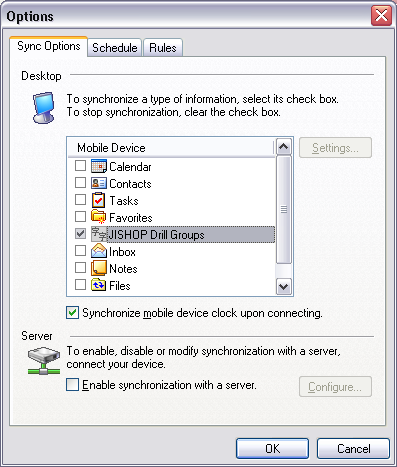
You can only synchronize the files in the My Documents folder on the device, and the ones in the default folder (ApplicationData\JISHOP\Groups) on the PC. During the synchronization, the whole structure of the file is preserved - groups, characters, hard/easy marks. The conflict resolution is performed according to the ActiveSync settings.
Also, JiShop supports file conversion on copying from the PC to the device and back.